
It's 11pm. You open one app for a minute, and the next time you look up it's past midnight. The problem usually isn't willpower: these apps are built to win exactly when your self-control is at its lowest point of the day. The fix is to make the decision earlier, while it's still easy, and let your phone enforce it at night.
Here are three ways to do that on iPhone, from the built-in options to automatic blocking tied to your sleep schedule.
Option 1: Downtime (built into iOS)
Downtime is part of Screen Time. During the hours you schedule, only calls and the apps you explicitly allow stay available.
- Open Settings and tap Screen Time.
- Tap Downtime and turn it on.
- Set the start time one to two hours before bed.
- Set the end time at or after your wake-up time.
Downtime is free and reliable, but it's all-or-nothing: it blocks nearly everything, and the Ask For More Time button grants 15 extra minutes in a single tap. We wrote a full Downtime setup guide if you want the details.
Option 2: App Limits (built into iOS)
App Limits caps how long you can use specific apps each day rather than blocking them at a specific time.
- Open Settings and tap Screen Time.
- Tap App Limits, then Add Limit.
- Select the apps or categories to limit.
- Set a daily time budget and tap Add.
The catch: a daily budget doesn't care when you spend it. If you burn your social media limit at lunch, nothing stops the 11pm scroll from spilling into a different app. App Limits work best combined with a time-based block.
Option 3: Automatic bedtime blocking with Supersleep
Supersleep blocks the apps you choose at the three moments that matter for sleep:
- Wind down — before bed, when a few minutes of scrolling can quietly stretch into an hour.
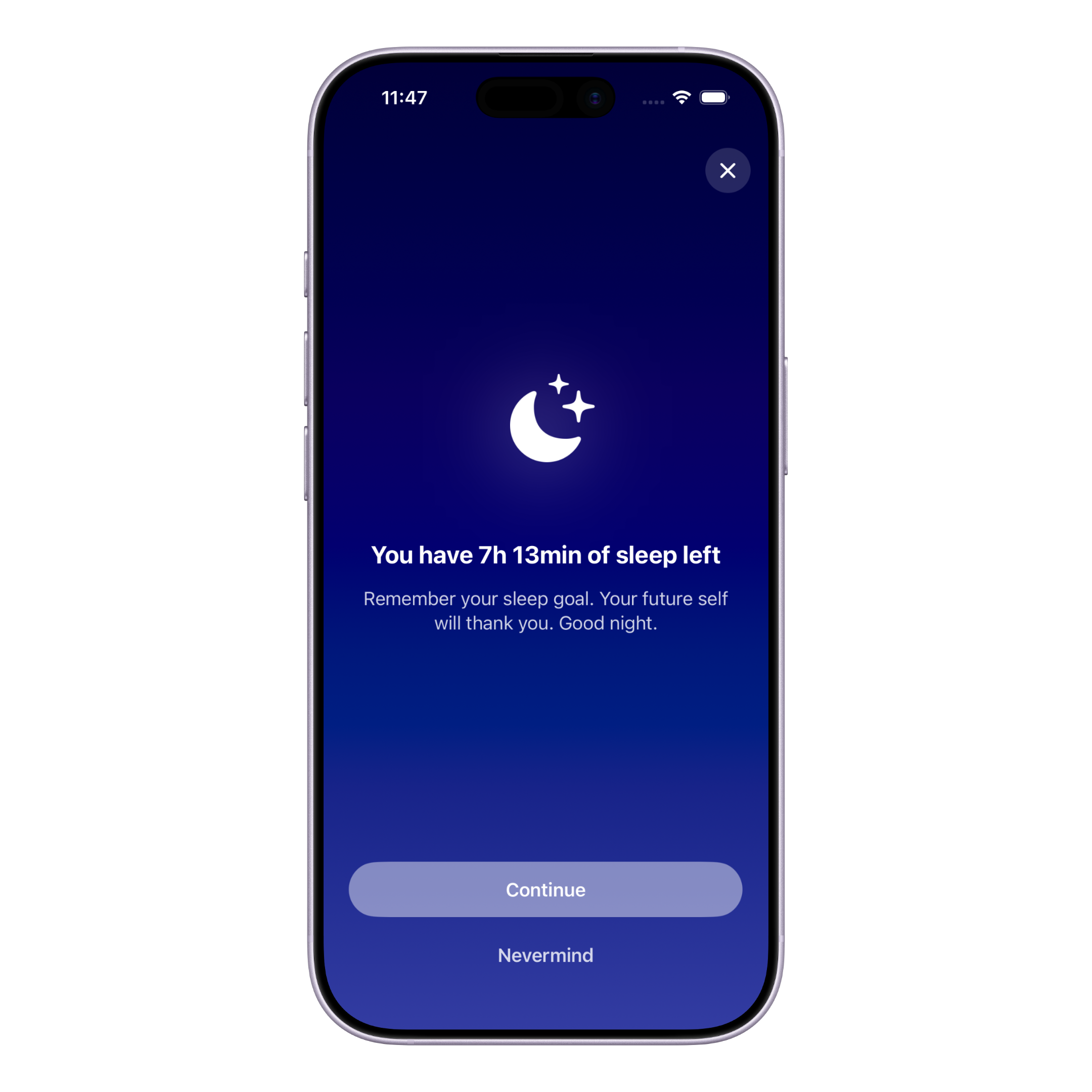
- Bedtime — during your planned sleep window. If you try to open a blocked app, Supersleep shows how much sleep time you have left instead.
- After waking — so your morning starts quieter, before the feeds pull you back in.
Because it follows your sleep schedule, there's nothing to toggle every evening. And because it uses Apple's Screen Time framework, Supersleep never sees which apps you picked: your choices stay on your device. When you genuinely need a blocked app, you can take a temporary break, so it never feels like a punishment.
Which one should you use?
If you want a free, fixed schedule and don't mind blocking nearly everything, Downtime is a solid start. If your problem is specific apps at a specific time of night, and you want the blocking to follow your sleep routine automatically, that's what Supersleep is built for.
One more layer of friction
Blocking works even better alongside two smaller changes: switching your screen to grayscale during wind down, which makes every app less tempting, and Sleep Focus, which silences the notifications that pull you back to the phone in the first place.
If late-night scrolling feels less like a choice and more like a pattern you can't break, you might also want to read about revenge bedtime procrastination — the surprisingly common reason exhausted people stay up anyway. And if you track your sleep and the nightly score has become its own source of stress, that pattern has a name too: orthosomnia.